This Pandas tutorial will show you, by examples, how to use Pandas read_csv() method to import data from .csv files. In the first section, we will go through how to read a CSV file, how to read specific columns from a CSV, and how to combine multiple CSV files into one dataframe. Finally, we will learn how to convert data according to specific datatypes (e.g., using Pandas read_csv dtypes parameter). In the last section, we will look at how to use Pandas to write CSV files. That is, we will learn how to export dataframes to CSV files.
Table of Contents
- How to Read CSV File in Python Pandas
- Pandas Read CSV from a URL Examples
- Pandas Read CSV usecols
- Pandas Import CSV files and Remove Unnamed Column
- Pandas Read CSV and Missing Values
- Reading a CSV file and Skipping Rows
- How to Read Certain Rows using Pandas
- Pandas read_csv dtype
- Load Multiple Files to a Dataframe
- How to Write CSV files in Pandas
- Conclusion
Naturally, Pandas can be used to import data from a range of different file types. For instance, Excel (xlsx), and JSON files can be read into Pandas dataframes. Learn more about importing data in Pandas:
How to Read CSV File in Python Pandas
In this section, we are going to learn how to read CSV files from the hard drive. Here is how to read a CSV file from your computer:
df = pd.read_csv('amis.csv')
df.head()Code language: Python (python)
If we are interested in reading files, in general, using Python we can use the open() method. This way, we can read many file formats (e.g., .txt) in Python.
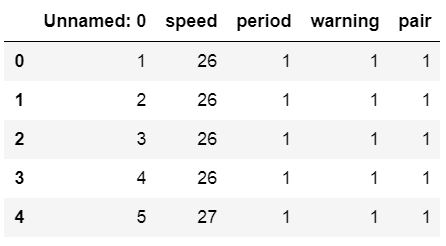
Additionally, we can use the index_col argument to make a column index in the Pandas dataframe. Finally, the data can be downloaded here but in the following examples, we are going to use Pandas read_csv to load data from a URL.
Pandas Read CSV from a URL Examples
Can we import a CSV file from a URL using Pandas? Yes, and in this section, we will learn how to read a CSV file in Python using Pandas, just like in the previous example. However, in the following read_csv example, we will read the same dataset, but this time from a URL. It is straightforward: we just put the URL as the first parameter. Here are three simple steps that will help us read a CSV from a URL:
- Again, we need to import Pandas
- Create a string variable with the URL
- Now use Pandas read_csv together with the URL (see example below)
Example 1: Read CSV from a URL
In the example code below, we follow the three easy steps to import a CSV file into a Pandas dataframe:
import pandas as pd

# String with URL:
url_csv = 'https://vincentarelbundock.github.io/Rdatasets/csv/boot/amis.csv'
# First example to read csv from URL
df = pd.read_csv(url_csv)
df.head()Code language: Python (python)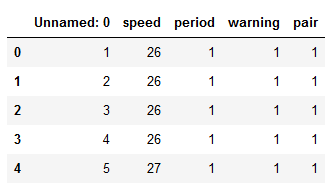
In the image above, we can see that we get a column named ‘Unnamed: 0’. Furthermore, it contains numbers. Thus, when using Pandas, we can use this column as the index column. We are doing precisely this in the following code example: we will use Pandas read_csv and the index_col parameter.
Example 2: Read CSV from a URL with index_col
This parameter can take an integer or a sequence. In our case, we are going to use the integer 0 and we will get a nicer dataframe:
url_csv = 'https://vincentarelbundock.github.io/Rdatasets/csv/boot/amis.csv'

# Pandas Read CSV from URL Example:
df = pd.read_csv(url_csv, index_col=0)
df.head()Code language: Python (python)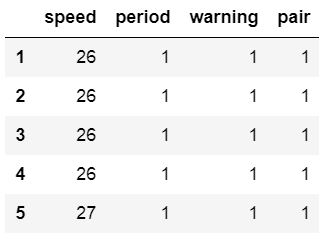
The index_col parameter can also take a string as input, and we will now use a different data file. In the next example, we will read a CSV into a Pandas dataframe and use the idNum column as index.
csv_url = 'http://vincentarelbundock.github.io/Rdatasets/csv/carData/MplsStops.csv'
df = pd.read_csv(csv_url, index_col='idNum')
df.iloc[:, 0:6].head()Code language: Python (python)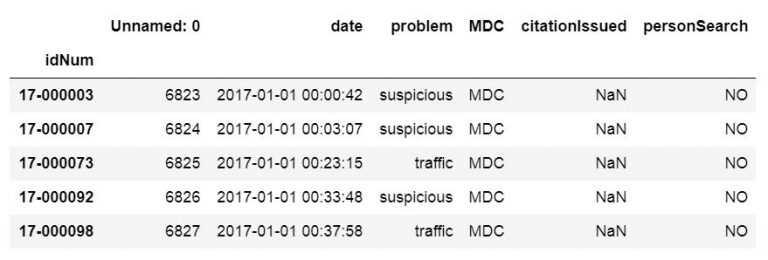
Note: to get the above output, we used Pandas iloc to select the first seven rows. This was done to get an output that could be more easily illustrated. That said, we are now moving on to the next section, where we will read certain columns into a dataframe from a CSV file.
A final note before going further with reading CSV files: It is also possible to use Pandas to read the iex cloud api with Python to import stock data.
Pandas Read CSV usecols
In some cases, we do not want to parse every column in the CSV file. To read only certain columns, we can use the usecols parameter. Note: if we want the first column to be the index column and we want to parse the first three columns, we need to have a list with 4 elements (compare my read_excel usecols example here).
Pandas Read CSV Example: Specifying Columns to Import
Here is an example when we use Pandas to only read the first three columns of a CSV file:
cols = [0, 1, 2, 3]
df = pd.read_csv(url_csv,
                   index_col=0, usecols=cols)
df.head()Code language: Python (python)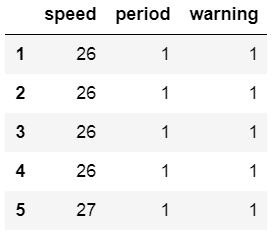
Note that we actually read 4 columns but set the first column as the index column. Of course, using read_csv and the usecols parameter makes more sense if we had a CSV file with more columns. We can use usecols with a list of strings, as well. In the next example, we return to the larger file we used previously. Here is how to use the column names in the datafile:
csv_url = 'http://vincentarelbundock.github.io/Rdatasets/csv/carData/MplsStops.csv'
df = pd.read_csv(csv_url, index_col='idNum',
                   usecols=['idNum', 'date', 'problem', 'MDC'])
df.head()Code language: Python (python)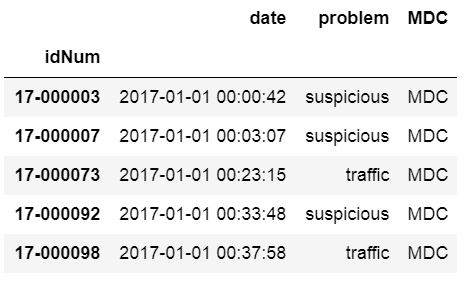
Pandas Import CSV files and Remove Unnamed Column
In some of the previous examples, we get an unnamed column. In previous sections of this Pandas read CSV tutorial, we have solved this by setting this column as the index column or by using usecols to select specific columns from the CSV file. However, we may not want to do that. Here is an example of how to use pd.read_csv to get rid of the column “Unnamed:0”:
csv_url = 'http://vincentarelbundock.github.io/Rdatasets/csv/carData/MplsStops.csv'
cols = pd.read_csv(csv_url, nrows=1).columns
df = pd.read_csv(csv_url, usecols=cols[1:])
df.iloc[:, 0:6].head()Code language: Python (python)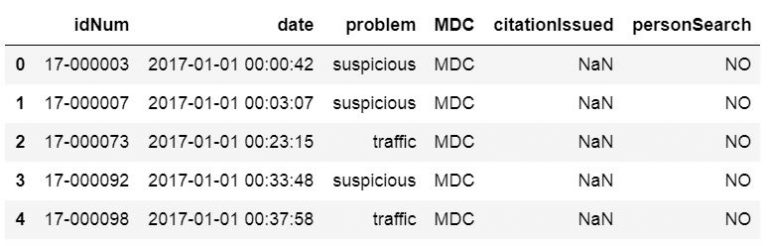
How to Drop a Column from Pandas dataframe
It is also possible to remove the unnamed columns after we have loaded the CSV to a dataframe. To remove the unnamed columns, we can use two different methods: loc and drop, together with other Pandas dataframe methods. When using the drop method, we can use the inplace parameter and get a dataframe without unnamed columns.
df.drop(df.columns[df.columns.str.contains('unnamed', case=False)],
          axis=1, inplace=True)

# The following line will give us the same result as the line above
# df = df.loc[:, ~df.columns.str.contains('unnamed', case=False)]

df.iloc[:, 0:7].head()Code language: PHP (php)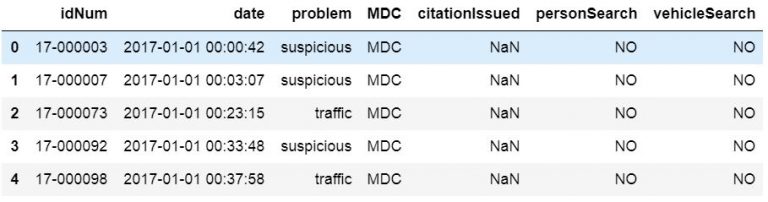
To explain the code example above, we select the columns without columns containing the string ‘unnamed’. Furthermore, we used the case parameter so that the contains method is not case-sensitive. Thus, we will get columns named “Unnamed” and “unnamed”. In the first row, we use Pandas drop with the inplace parameter to change our dataframe. The axis parameter, however, is used to drop columns instead of indices (i.e., rows).
Pandas Read CSV and Missing Values
In the next Pandas read .csv example, we will learn how to handle missing values in a Pandas dataframe. If we have missing data in our CSV file and it is encoded in a way that prevents Pandas from detecting it, we can use the na_values parameter. In the example below, the amis.csv file has been updated, and some cells contain the string “Not Available”.
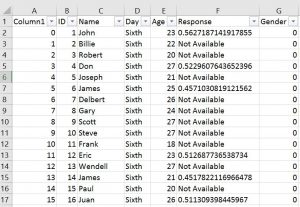
That is, we are going to change “Not Available” to something we can easily remove when conducting data analysis later.
df = pd.read_csv('Simdata/MissingData.csv', index_col=0,
                   na_values="Not Available")
df.head()Code language: Python (python)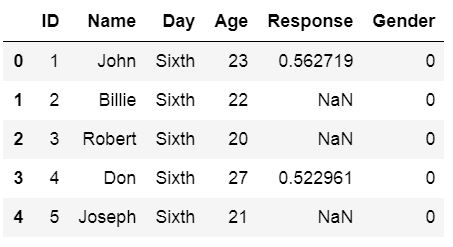
Reading a CSV file and Skipping Rows
What if our data file(s) contain information on the first x rows and we need to skip rows when using Pandas read_csv? For instance, how can we skip the first three rows in a file looking like this:
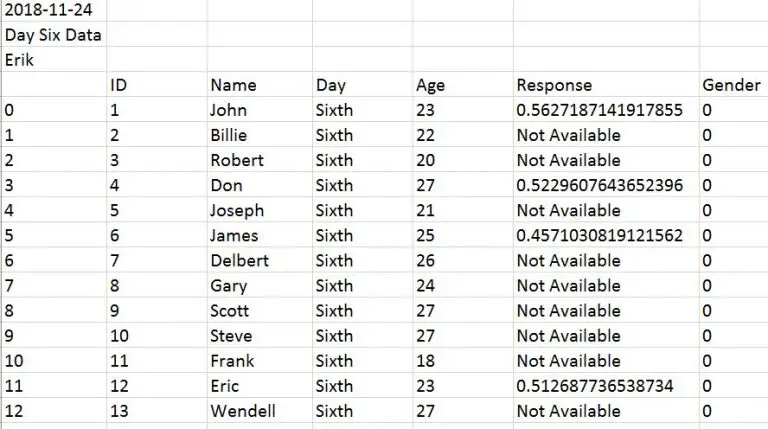
We will now learn how to use Pandas’ read_csv and skip x rows. Luckily, it is very simple we just use the skiprows parameter. In the following example, we are setting skiprows to 3 to skip the first 3 rows.
Pandas read_csv skiprows example:
How do we use the Pandas skiprows parameter? Here is an example where we skip the first three rows:
df = pd.read_csv('Simdata/skiprow.csv', index_col=0, skiprows=3)
df.head()Code language: Python (python)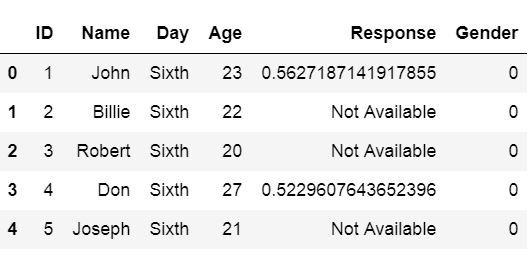
Note we can obtain the same result as above using the header parameter (i.e., data = pd.read_csv('Simdata/skiprow.csv', header=3)).
How to Read Certain Rows using Pandas
Can we read specific rows from a CSV file using the Pandas read_csv method? If we don’t want to read every row in the CSV file, we can use the parameter nrows. In the next example, below, we read the first 8 rows of a CSV file.
df = pd.read_csv(url_csv, nrows=8)
dfCode language: Python (python)
If we want to select random rows, we can load the complete CSV file and use Pandas sample to randomly select rows (learn more about this by reading the Pandas Sample tutorial).
Pandas read_csv dtype
We can also set the data types for the columns. Although in the AMIS dataset all columns are integers, we can set some of them to the string data type. This is exactly what we will do in the next Pandas read_csv example. We will use the dtype parameter and put it in a dictionary:
url_csv = 'https://vincentarelbundock.github.io/Rdatasets/csv/boot/amis.csv'
df = pd.read_csv(url_csv, dtype={'speed':int, 'period':str, 'warning':str, 'pair':int})
df.info()Code language: Python (python)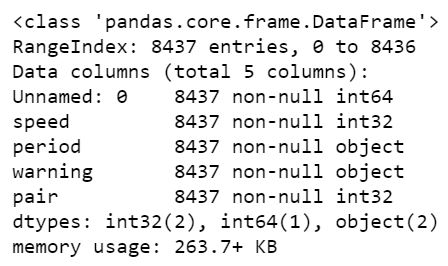
It’s, of course, possible to force other datatypes such as integer and float. All we have to do is change str to float, for instance (given that we have decimal numbers in that column, of course).
Load Multiple Files to a Dataframe
If we have data from multiple sources, such as experiment participants, we may store it in multiple CSV files. If the data from the different CSV files are going to be analyzed together, we may want to load them all into one dataframe. In the next examples, we are going to use Pandas read_csv to read multiple files.
Example 1: Reading Multiple CSV Files using os fnmatch
First, we are going to use Python os and fnmatch to list all files with the word “Day” in the file type CSV in the directory “SimData”. Next, we use Python list comprehension to load the CSV files into dataframes (stored in a list; see the type(dfs) output).
import os, fnmatch

csv_files = fnmatch.filter(os.listdir('./SimData'), '*Day*.csv')
dfs = [pd.read_csv('SimData/' + os.sep + csv_file)
       for csv_file in csv_files]

type(dfs)
# Output: listCode language: Python (python)
Finally, we use the method concat to concatenate the dataframes in our list. In the example files, there is a column called ‘Day’ so that each day (i.e., CSV file) is unique.

Example 2: Reading Multiple CSV Files using glob
The second method we are going to use is a bit simpler; using Python glob. If we compare the two methods (os + fnmatch vs. glob) we can see that in the list comprehension we don’t have to put the path. This is because glob will have the full path to our files. Handy!
import glob

csv_files = glob.glob('SimData/*Day*.csv')
dfs = []

for csv_file in csv_files:
    temp_df = pd.read_csv(csv_file)
    temp_df['DataF'] = csv_file.split('\\')[1]
    dfs.append(temp_df)Code language: Python (python)
If we do not have a column in each CSV file identifying which dataset it is (e.g., data from different days), we could apply the filename in a new column of each dataframe:
import glob

csv_files = glob.glob('SimData/*Day*.csv')
dfs = []

for csv_file in csv_files:
    temp_df = pd.read_csv(csv_file)
    temp_df['DataF'] = csv_file.split('\\')[1]
dfs.append(temp_df)Code language: Python (python)- Check the Pandas Dataframe Tutorial for Beginners
There are, of course, times when we need to rename multiple files (e.g., CSV files before loading them into Pandas dataframes). Luckily, to rename a file in Python we can use os.rename(). This method can be used regardless of whether we need to rename CSV or .txt files.
Now we know how to import multiple CSV files, and in the next section we will learn how to use Pandas to write to a CSV file.
How to Write CSV files in Pandas
In this section, we will learn how to export dataframes to CSV files. We will start by creating a dataframe with some variables, but first, we will import the Pandas module:
import pandas as pdCode language: Python (python)Before we go on and learn how to use Pandas to write a CSV file, we will create a dataframe. We will create the dataframe using a dictionary. The keys will be the column names and the values will be lists containing our data:
df = pd.DataFrame({'Names':['Andreas', 'George', 'Steve',
                           'Sarah', 'Joanna', 'Hanna'],
                  'Age':[21, 22, 20, 19, 18, 23]})
df.head()Code language: Python (python)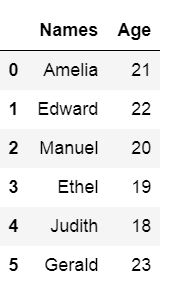
Saving Pandas Dataframe to CSV
Now we are ready to learn how to save a Pandas dataframe to CSV. It is quite simple; we write the dataframe to a CSV file using Pandas to_csv method. In the example below, we do not use any parameters but the path_or_buf which is, in our case, the file name.
df.to_csv('NamesAndAges.csv')Code language: Python (python)Here is how the exported dataframe looks:
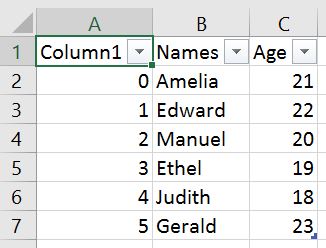
As can be seen in the image above, we get a new column when we are not using any parameters. This column is the index column from our Pandas dataframe. When working with Pandas to_csv, we can use the parameter index and set it to False to get rid of this column.
df.to_csv('NamesAndAges.csv', index=False)Code language: PHP (php)How to Write Multiple Dataframes to one CSV file
If we have many dataframes and we want to export them all to the same CSV file it is, of course, possible. In the Pandas to_csv example below, we have 3 dataframes. We are going to use Pandas concat with the keys and names parameters.
This is done to create two new columns, named Group and Row Num. The important part is Group, which will identify the different dataframes. In the last row of the code example, we use Pandas to_csv to write the dataframes to CSV.
df1 = pd.DataFrame({'Names': ['Andreas', 'George', 'Steve',
                           'Sarah', 'Joanna', 'Hanna'],
                   'Age':[21, 22, 20, 19, 18, 23]})
df2 = pd.DataFrame({'Names': ['Pete', 'Jordan', 'Gustaf',
                           'Sophie', 'Sally', 'Simone'],
                   'Age':[22, 21, 19, 19, 29, 21]})
df3 = pd.DataFrame({'Names': ['Ulrich', 'Donald', 'Jon',
                           'Jessica', 'Elisabeth', 'Diana'],
                   'Age':[21, 21, 20, 19, 19, 22]})


df = pd.concat([df1, df2, df3], keys =['Group1', 'Group2', 'Group3'],
               names=['Group', 'Row Num']).reset_index()

df.to_csv('MultipleDfs.csv', index=False)Code language: Python (python)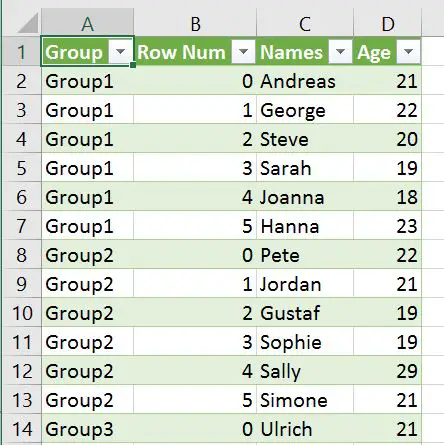
In the CSV file, we get 4 columns. The keys parameter with the list (['Group1', 'Group2', 'Group3']) will enable identification of the different dataframes we wrote. We also get the column “Row Num” which will contain the row numbers for each dataframe:
Conclusion
In this tutorial, we have learned about importing CSV files into a Pandas dataframe. More specifically, we have learned how to:
- Load CSV files to dataframe using Pandas read_csv
- locally
- from the WEB
- Read certain columns
- Remove unnamed columns
- Handle missing values
- Skip rows and read certain rows
- Changing datatypes using dtypes
- Reading many CSV files
- Saving dataframes to CSV using Pandas to_csv
Here are two simple steps to learn how to read a CSV file in Pandas:
1) Import the Pandas package:
import pandas as pd
2)Use the pd.read_csv() method:df = pd.read_csv('yourCSVfile.csv')